Contact & help


A bootable USB stick is the fastest and most reliable way to install Windows 11 Pro cleanly – without download waiting times, without a DVD drive and without a pre-installation. This guide takes you through clearly understandable steps from preparation to successful activation. It is suitable for a complete fresh installation as well as for upgrading from Windows 10 or Windows 11 Home.
Don't have a data carrier yet? You can get the ready-prepared, bootable stick including the product key here: Windows 11 Pro 64 Bit incl. USB stick. If you prefer to download directly, you'll find the digital version as the Windows 11 Pro instant download.
Check the requirements
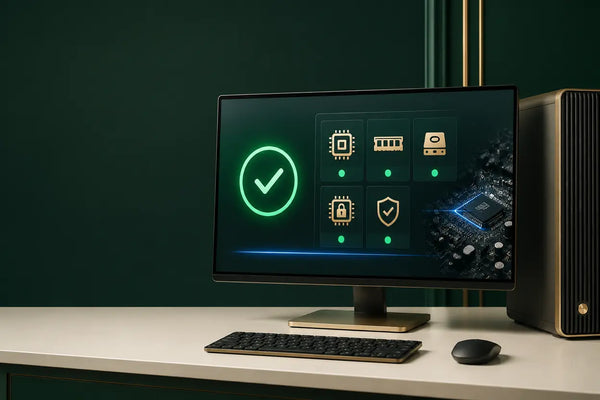
Windows 11 Pro has clear hardware requirements. Before installing, check whether your PC meets the following points – otherwise the setup will abort with the message "This PC can't run Windows 11".
Whether your device is compatible is shown by the free Microsoft "PC Health Check" app. If TPM 2.0 or Secure Boot is missing, both can be enabled in the BIOS/UEFI on most devices from recent years. If your PC is fundamentally too old for Windows 11, Windows 10 Pro remains the sensible alternative.
Important: back up your data first
A fresh installation usually deletes all data on the system drive. Beforehand, back up your documents, photos and browser bookmarks to an external hard drive or to the cloud. An upgrade over the running Windows installation usually keeps your files, but a backup is always the safe choice.
Installation in 5 steps
A detailed activation guide
If you want to focus solely on activation – for example because Windows is already installed – our separate guide will help you: Activate Windows 11 – guide + buy key 2026.
Common problems and solutions
The PC won't boot from the USB stick
Check the boot order in the BIOS/UEFI and, if necessary, disable "Fast Boot". Make sure to select the USB entry in UEFI mode (not "Legacy"), since Windows 11 requires UEFI with Secure Boot.
Message "This PC can't run Windows 11"
In almost all cases, TPM 2.0 or Secure Boot is missing. You enable both in the BIOS/UEFI – depending on the manufacturer, TPM is also called "PTT" (Intel) or "fTPM" (AMD).
The product key is not accepted
Enter the key exactly and without spaces. Make sure there is an active internet connection. If problems persist, the German-language KARINEX support will help you.
Windows 11 Home installed instead of Pro
When selecting the edition in the setup, look out for "Windows 11 Pro". Unsure whether Pro is the right choice? The comparison Windows 11 Home or Pro helps with the decision.
Is buying a Windows key legal?
A legitimate question – and the answer is: yes, provided it is an original license that has been lawfully placed on the market. What you should look out for when buying is explained in our detailed article Buying a Windows 11 key – legal or illegal?.
Conclusion
Installing Windows 11 Pro via USB stick is done in under an hour: check the requirements, back up your data, boot from the stick, install, activate. The physical data carrier has a clear advantage over a pure download – you keep it and can reuse it at any time for a fresh installation and system recovery.
Matching products & topics
Note: Microsoft® and Windows® are registered trademarks of the Microsoft Corporation. KARINEX acts as an independent reseller; there is no business relationship with Microsoft.