Contact & help

Filters
19 items
Sort Topseller
Reduzierung
-
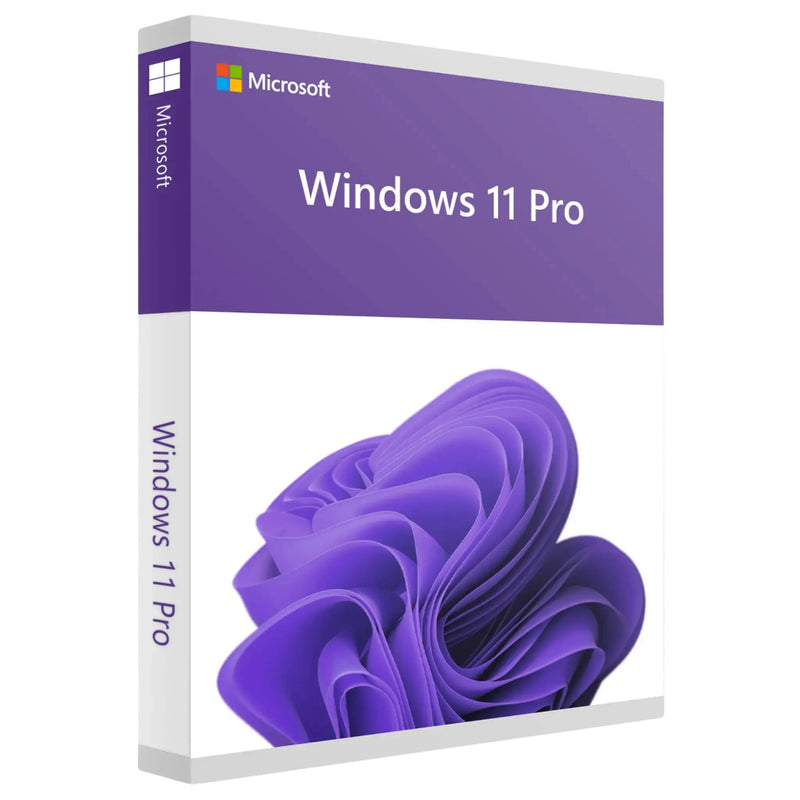
Buy Windows 11 Pro – Perpetual Licence 1 PC, Download -
Buy Windows 11 Home Key – Genuine License + Instant Download for 1 PC -
Buy Windows 10 Pro | Genuine 32/64-Bit License Key – Instant Download -
Buy Windows 11 Pro USB stick – perpetual licence + key sent instantly by email -
Buy Windows 11 Enterprise Key – Original Licence + Download for 1 PC -
Windows 10 Home OEM -
Windows Server 2025 Standard – Genuine License | Instant Download -
Buy Windows 11 Education at a Low Price – Genuine Licence with Instant Download -
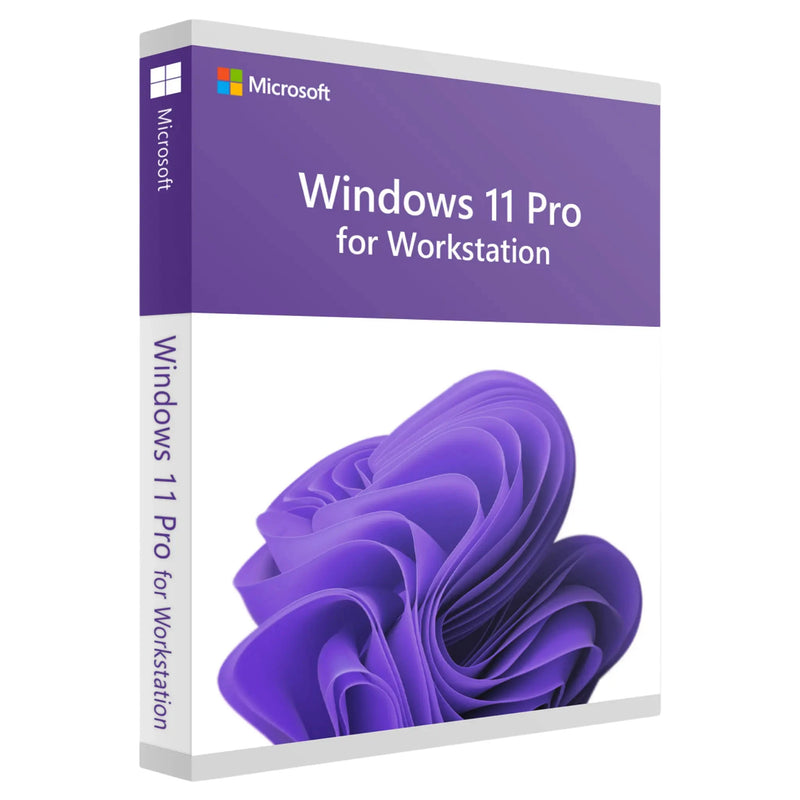
Buy Windows 11 Pro for Workstations cheap – Perpetual licence 1 PC | Instant download -
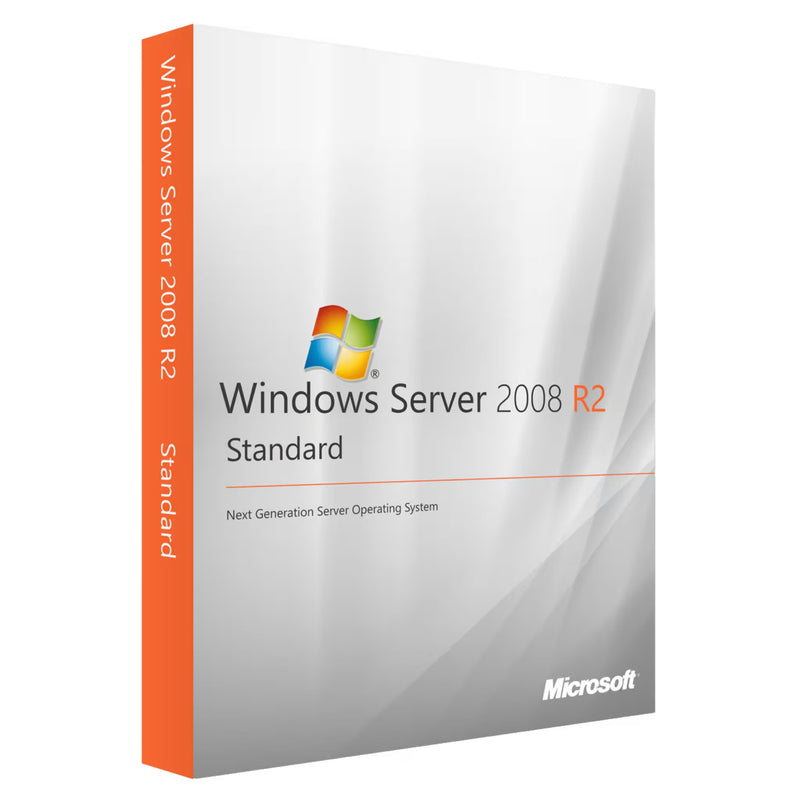
Microsoft Windows Server 2008 R2 Standard -
Buy Windows 11 Pro DVD – OEM License, Key by Email with Instant Delivery -
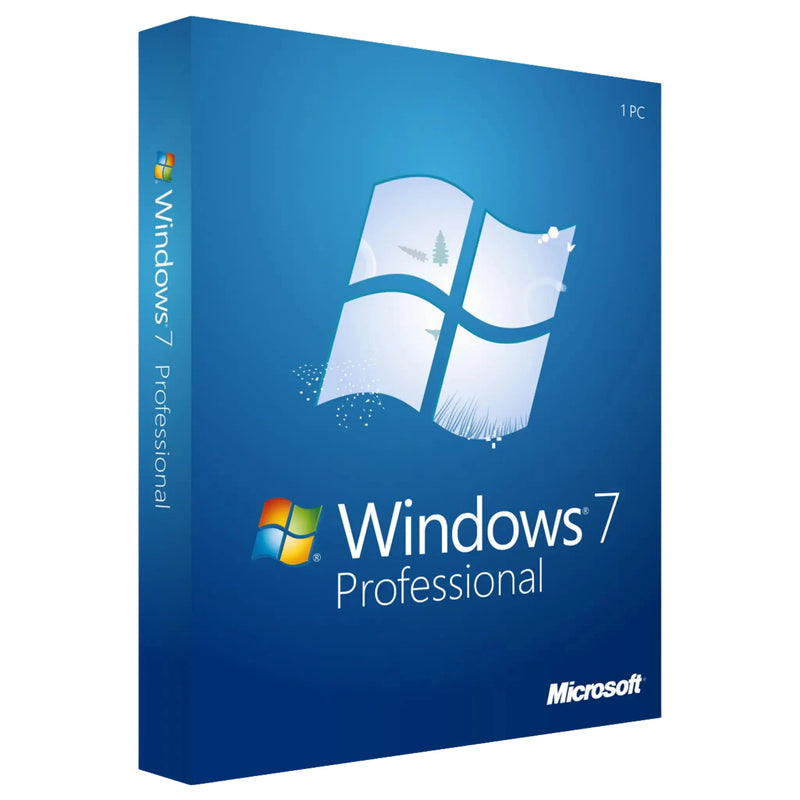
Windows 7 Professional License – OEM Key, Instant Email Delivery -
Buy Windows 11 Pro Volume Licence – for businesses -
Buy Microsoft Windows 7 Ultimate OEM License 32/64-Bit | Instant Download -
Buy Microsoft Windows 7 Home Premium OEM License 32/64-Bit | Instant Download -
Windows 10 Enterprise -
Buy Windows 11 Home N Key – Download for 1 PC -
Buy Windows 10 IoT Enterprise 2019 LTSC at a Low Price – Perpetual License | Instant Download -
Buy Windows 10 Education at a Low Price – Genuine Licence with Instant Download













Buy a genuine Microsoft Windows licence
Windows 11, Windows 10, Windows Server and older Windows versions – at Karinex you get the operating system from Microsoft as a genuine, original licence for home users, the self-employed and businesses. Buy once, use forever: a Windows perpetual licence involves no monthly costs and stays tied to you or your device. You receive your product key digitally by e-mail or – depending on the product you choose – as a physical installation DVD by post, always including step-by-step installation instructions and a proper invoice with VAT shown separately.
- Delivery – digitally within minutes by e-mail, or as a DVD by post
- Activation – permanent, online via the Microsoft servers
- Licence type – perpetual licence with no subscription and no follow-up costs
- Invoice – with VAT shown separately, tax-deductible for the self-employed
- Guarantee – 100-day money-back guarantee at Karinex
On this page you will find an overview of all current Windows operating systems – along with a detailed guide that helps you choose the right version and edition, explains the most important features and answers common questions about download, installation, updating and activation. Select the product that suits you above, or read on first if you are unsure which Windows version is right for you.
What is Microsoft Windows?
Microsoft Windows is the world's most widely used operating system for PCs and laptops. An operating system is the central software that connects your computer's hardware – processor, memory, hard drive, graphics card – with the programs you work with every day. Without an operating system, a computer would be nothing more than a collection of electronic components: it is Windows that turns it into a usable device on which you can browse, write, play, edit videos or do your accounting.
To make this possible, Windows provides the graphical user interface – that is, the desktop, the Start menu, the taskbar, windows and icons that you operate with a mouse, keyboard or touch. At the same time, it manages your files in the background, controls connected devices such as printers, cameras and external hard drives, takes care of the network and internet connection, and uses built-in security features to keep your system protected from malware. You can think of the operating system as a mediator: when you click "Save" in a program, Windows translates that command into the specific instructions the hard drive understands – without you having to worry about the technical details.
The great advantage of Windows lies in its enormous reach: virtually every piece of PC software and practically every peripheral device is compatible with Windows. Whether it is office software such as Microsoft Office, professional creative programs, accounting software, games or specialist applications for trades, medicine or industry – the vast majority of programs are developed first, and often exclusively, for Windows. This huge selection of compatible software and hardware is the main reason Windows has been the first choice for work, study, creative work and gaming for decades.
The Windows interface at a glance
Anyone using Windows for the first time, or switching from another system, will quickly feel at home thanks to its clear structure. The most important interface elements are easy to explain and remain essentially the same across versions:
- Desktop – the work surface where you can place shortcuts to programs and files.
- Start menu – the central hub for programs, settings and search; accessible via the Windows icon.
- Taskbar – the bar along the bottom of the screen with open and pinned programs as well as the clock.
- File Explorer – the tool for managing, copying and organising your files and folders.
- Notification area (system tray) – on the right of the taskbar, with icons for volume, network, battery and background programs.
Through Settings you can customise almost every one of these elements – from the position of the taskbar to colours and wallpaper, right through to the layout of the Start menu. In just a few minutes you can make Windows your own personal working environment.
The history of Windows: from Windows 1.0 to Windows 11
Since the first release of Windows in 1985, Microsoft has continuously developed its operating system – from a simple graphical layer for MS-DOS to a modern, cloud-connected system with touch operation, virtual desktops and artificial intelligence. Every generation brought innovations, many of which still shape the way we use it today. Understanding this development also makes it easier to see why certain older Windows versions remain in demand for specific hardware or software.
The early years: Windows 1.0 to 3.11
The first Windows versions from 1985 onwards were graphical interfaces that sat on top of the text-based operating system MS-DOS. Instead of typing cryptic commands, users could now move windows with the mouse and launch programs via an icon. With Windows 3.0 and 3.11 in the early 1990s came the first major commercial success, thanks in part to the included Program Manager and networking capabilities.
Windows 95, 98 and ME – the breakthrough for the home PC
Windows 95 was a milestone: it introduced the Start menu, the taskbar and plug-and-play detection of new devices, and adopted a 32-bit architecture. For the first time, the PC became genuinely usable for a wide range of users. Its successors, Windows 98 and Windows ME, improved above all the internet connectivity and support for new hardware, but technically remained built on the same foundation. In parallel, Microsoft developed a more stable line for professional business use with Windows NT and Windows 2000.
Windows XP – the long-lived classic
Windows XP, released in 2001, became one of the most popular Windows versions of all time. For the first time it combined the stable NT technology with a user-friendly interface for home users. Its clean, colourful look, high stability and improved security made it the standard in offices and homes for many years. XP was so successful that in some cases it remained in use for well over a decade.
Windows Vista and Windows 7 – design meets compatibility
Windows Vista brought a modernised look in 2007 with the transparent "Aero" interface and a much stricter security concept, but was criticised for its high hardware requirements. Windows 7 addressed these criticisms in 2009: it combined the appealing design with high speed, broad hardware compatibility and improved touch support. To this day, many regard Windows 7 as one of the most well-rounded Windows versions, and for years it was the de facto standard in businesses.
Windows 8 and 8.1 – the bold tile experiment
With Windows 8, Microsoft took a radical step in 2012: the classic Start menu disappeared in favour of a full-screen, tile-based Start screen heavily geared towards touch operation. On traditional desktop PCs without a touchscreen, this was not universally well received. Windows 8.1 softened the transition somewhat and brought back the Start button – but the tile concept remained controversial and was seen by many users as something to get used to.
Windows 10 – the return to familiarity
Windows 10 reconciled the camps in 2015: the classic Start menu returned, combined with the live tiles from Windows 8. It was supplemented by virtual desktops, the new Microsoft Edge browser, the integrated Windows Defender antivirus and the voice assistant Cortana. Windows 10 was marketed as "Windows as a Service" and supplied with regular feature updates over many years, rather than being reissued in large leaps.
Windows 11 – the current generation
Windows 11 has been the current version since 2021. It brings a modern, clean design with a centred Start menu, rounded corners and a calmer colour scheme, along with productivity-focused features such as Snap Layouts, deep integration of Microsoft Teams and Widgets, plus a revamped security concept with higher hardware requirements. Windows 11 is the version Microsoft is actively developing and supplying with new features – so anyone investing today should opt for Windows 11.
Windows 11 in detail
Windows 11 takes the strengths of Windows 10 and extends them with numerous new features aimed above all at productivity, security and a modern user experience. Anyone buying a new computer today or wanting to keep a system up to date over the long term is well served by Windows 11, as it enjoys full Microsoft support. In the following, we present the most important features in more detail.
Modern design and operation
The most striking feature of Windows 11 is its redesigned interface. The Start menu and icons are centred in the taskbar by default, windows have rounded corners, and gentle animations along with a consistent light or dark mode create a calm, uncluttered appearance. Operation remains familiar, but overall feels tidier and more modern than in its predecessors.
Snap Layouts and Snap Groups
Snap Layouts are one of the most practical innovations: hover the mouse over a window's maximise button and Windows suggests various arrangements into which you can slot your open programs with a click – for example two windows side by side or four in a grid. Snap Groups remembers these arrangements and restores them as a group on request. On large monitors in particular, this significantly boosts productivity when working with several applications at once.
Widgets, Microsoft Teams and the Microsoft Store
A pull-out Widgets panel gives you weather, news, calendar and personal information at a glance. Microsoft Teams is integrated directly into the taskbar, so you can start a chat or video call without a separate installation. The revamped Microsoft Store has a clearer layout, offers a personalised home page and a larger selection of apps than before.
Security and Windows Hello
Windows 11 is firmly committed to modern security. Windows Hello enables sign-in via facial recognition, fingerprint or PIN – faster and more secure than a traditional password. Together with the required TPM 2.0 security chip and Secure Boot, Windows 11 is hardened from the ground up against many types of attack, which is especially important for sensitive business and customer data.
Gaming on Windows 11
For gamers, Windows 11 delivers noticeable improvements. DirectX 12 Ultimate gets more performance out of modern graphics cards, Auto HDR automatically enhances the colour and contrast even in older games, and DirectStorage significantly cuts loading times by passing game data directly and efficiently from fast SSDs to the graphics card. This makes Windows 11 the ideal platform for today's PC gaming.
Artificial intelligence and voice control
Windows 11 increasingly puts artificial intelligence at the centre. An integrated AI assistant helps with everyday tasks, answers questions, summarises content and adjusts settings – right from the taskbar. The dictation and read-aloud features as well as the accessibility tools also benefit from modern speech recognition. This lets you get many tasks done more quickly, and makes the computer easier to access for people with different needs. Exactly which AI features are available depends on the particular Windows version and the hardware; development in this area is moving quickly.
Accessibility in Windows
Windows comes with extensive accessibility tools: the narrator for blind and visually impaired users, a magnifier, contrast themes, captions, and control by voice or eye tracking. You will find these features grouped under Settings > Accessibility, and they can be customised individually so that everyone can use the PC comfortably.
Windows 11 Home or Windows 11 Pro?
With Windows 11 you have the choice between two main editions. Windows 11 Home is entirely sufficient for everyday private use: browsing, Office, streaming, gaming and day-to-day work are all easily possible with it. Windows 11 Pro adds professional tools to the Home features: BitLocker drive encryption, the Hyper-V virtualisation solution, remote desktop access, plus connectivity to corporate networks and domains. The self-employed and businesses therefore usually reach for the Pro edition, while Home is the cheaper option and is completely sufficient for home users.
Windows 11 system requirements
Windows 11 has higher hardware requirements than its predecessors. Recommended are a compatible 64-bit processor with at least two cores and 1 GHz, 4 GB of memory, 64 GB of storage space and – and this is the decisive point – an activated TPM 2.0 module (Trusted Platform Module) and Secure Boot. These security chips are standard on current devices, but may be missing on older PCs or disabled in the BIOS. The easiest way to check whether your computer meets the requirements is with Microsoft's free "PC Health Check" (PC-Integritätsprüfung). For older hardware that does not meet the requirements, Windows 10 is often the more suitable choice.
Windows 11 download and installation
After buying a genuine licence at Karinex, you download Windows 11 legally and free of charge directly from Microsoft. Microsoft provides the "Media Creation Tool" as well as official ISO files for this, which you can use to create a bootable USB stick or start an upgrade directly from within the running system. The installation medium itself is therefore freely available – only your product key unlocks Windows permanently. Here is how the download works: you visit the official Microsoft download page, download the Media Creation Tool, choose the language and edition to match your licence, and either create installation media or update the PC directly. During installation, or afterwards under "Settings", you enter the product key you received from Karinex and activate Windows via the Microsoft servers.
Windows 11 updates: how to keep the system up to date
Microsoft supplies Windows 11 with regular updates. A distinction is made between two types: quality updates appear monthly and primarily close security gaps and fix errors; feature updates appear roughly once a year and bring new features. Updating happens automatically, but you can trigger it manually at any time: open Settings, select the Windows Update section and click Check for updates. Available updates are downloaded and installed after a restart. Your genuine licence remains valid across all updates – a Windows perpetual licence receives updates without any additional costs arising.
Windows 10 in detail
Windows 10 remains a reliable and mature choice. Refined over many years, it is familiar to operate, runs smoothly even on older hardware and is often cheaper than the current generation. For PCs that do not meet the strict system requirements of Windows 11, or for users who deliberately want to stick with the interface they know, Windows 10 is still a sensible option.
The most important features of Windows 10
- Classic Start menu & search – clear access to programs, files and settings, both local and online.
- Microsoft Edge – the modern web browser with connectivity to Microsoft services such as OneDrive.
- Virtual desktops – several separate work areas for different tasks.
- Windows Defender – built-in protection against viruses and malware, at no additional cost.
- Broad compatibility – runs reliably with older programs and peripheral devices.
End of support for Windows 10
Important to know: regular support for Windows 10 ended on 14 October 2025. This means that Microsoft no longer provides free security updates for the standard versions. Windows 10 can still be installed and used, and for users who need a little more time to switch, Microsoft offers a paid programme for extended security updates (Extended Security Updates, ESU). A Windows 10 licence is therefore especially attractive if you want to keep running older hardware, use specialised software with compatibility requirements or set up a secondary device. For a future-proof system that receives long-term security updates, we recommend switching to Windows 11.
Windows 10 or Windows 11 – the most important differences
Many customers wonder whether it is worth switching to Windows 11 or whether Windows 10 is still enough. The decision depends above all on the hardware and the desired support period. Here are the key differences at a glance:
- Support – Windows 11 continues to receive free security and feature updates; regular support for Windows 10 has already ended.
- Design – Windows 11 uses a centred, modernised layout, Windows 10 the classic, left-aligned arrangement.
- Hardware – Windows 11 requires TPM 2.0 and Secure Boot; Windows 10 also runs on older devices without these prerequisites.
- Features – Snap Layouts, integrated Teams connectivity, Widgets and gaming technologies such as DirectStorage are exclusive to Windows 11.
- Price – Windows 10 licences are often somewhat cheaper, which makes them attractive for older secondary devices.
In short: if your PC meets the requirements, Windows 11 is the future-proof choice. If your hardware is older or you need maximum compatibility with certain software, Windows 10 can still make sense.
Switching from Windows 10 to Windows 11
Moving from Windows 10 to Windows 11 is straightforward if your device meets the system requirements. First check with the "PC Health Check" (PC-Integritätsprüfung) whether your computer is compatible. Then be sure to back up your important files, for example to an external hard drive or in the cloud. Via Windows Update, the upgrade is usually offered directly on eligible devices; alternatively you can use Microsoft's Installation Assistant. Your programs and personal data are normally preserved during the upgrade. If you already have a valid Windows licence, Windows 11 is usually activated automatically after the upgrade. If, however, you are moving to a new PC or prefer a fresh installation, a new genuine licence is the clean solution – and here too our support team is happy to help.
Windows editions compared
Windows comes not only in different versions, but also in several editions within each version. The edition determines the range of features – from the lightweight Home variant for home users to the fully equipped Enterprise edition for large organisations.
- Home – for home users, with all the essential features for everyday use: browsing, Office, streaming and gaming.
- Pro – for the self-employed, power users and small businesses, with BitLocker encryption, Hyper-V, remote desktop and domain connectivity.
- Enterprise – for larger companies with advanced management, security and deployment features; usually available through volume licence agreements.
- Education – functionally largely identical to Enterprise, tailored to schools, universities and educational institutions.
Retail, OEM and volume licence – the licence types
Besides the edition, Windows licences are also distinguished by their licence type. This determines how flexibly the licence can be transferred and what conditions it is tied to:
- Retail – the classic retail licence. It is not permanently tied to one device and may be transferred to a new PC when you change hardware.
- OEM – tied to the first device on which it is activated. OEM licences are cheaper than Retail licences and the ideal choice when the licence is to remain permanently on one computer.
- Volume licence – intended for businesses and organisations that want to license and centrally manage many devices at once.
- ESD (Electronic Software Distribution) – refers to the purely digital delivery of the product key by e-mail, without a physical medium.
32-bit or 64-bit – what is the difference?
Historically, Windows has come in a 32-bit and a 64-bit version. The most important practical difference concerns the usable memory: a 32-bit version can address only around 4 GB of RAM, whereas 64-bit systems manage significantly more memory and run modern programs more efficiently. Virtually all current PCs and practically all modern software are designed for 64-bit; Windows 11 is offered exclusively as a 64-bit version. You can see which variant is running on your system under Settings > System > About in the "System type" entry. For new installations, 64-bit is generally the right choice today.
Special editions of Windows at a glance
Alongside the familiar Home, Pro, Enterprise and Education editions, there is a whole range of special editions tailored to particular use cases – from the N editions for the European market and the low-maintenance LTSC versions for industry and business through to Windows Pro for Workstations for high-performance hardware. If you are looking specifically for one of these variants, you will find the most important facts, differences and usage recommendations here. We are continuously expanding our range with further Windows editions and versions.
Windows N editions: Home N and Pro N
The N editions – such as Windows 11 Home N or Windows 11 Pro N – are a peculiarity of the European market. They arose from a competition-law requirement imposed by the European Commission and are supplied by Microsoft without Windows Media Player and without the associated media features. The “N” stands for “Not with Media Player”. Specifically, the Media Player, the apps for music and films and certain media codecs are missing out of the box; features such as the Camera app or voice recording are also not included at first.
Important to know: apart from these media components, an N edition is functionally identical to the regular version – the same performance, the same security, the same updates, the same support period. Anyone who does need the media features later can install Microsoft's free “Media Feature Pack” and thereby retrofit practically everything. N editions are therefore of interest above all to businesses and users who deliberately want to keep their systems lean or use their own media software anyway – and occasionally N licences can be had somewhat cheaper than the standard versions. For the typical home user who also uses the PC for music, videos and streaming, the regular edition is usually the more convenient choice.
Windows Enterprise LTSC: long-term stability without feature updates
LTSC stands for “Long-Term Servicing Channel” and refers to a special servicing channel of Windows Enterprise. The basic idea: an LTSC system receives only security and quality updates over many years – but no feature updates, no new apps and no interface changes. The system therefore remains exactly as it was installed over its entire life cycle. That is precisely what makes LTSC valuable for environments in which stability and predictability matter more than new features: industrial PCs and machine controls, point-of-sale systems in retail, medical devices, cash machines, digital signage displays or test rigs that need to run unchanged and reliably for years.
The version history is quickly told: the first releases appeared as Windows 10 Enterprise LTSB 2015 and LTSB 2016 – LTSB stood for “Long-Term Servicing Branch”. With the 2019 release, Microsoft renamed the channel LTSC; LTSB and LTSC therefore describe the same concept, just under the old and the new name respectively. These were followed by Windows 10 Enterprise LTSC 2019, Windows 10 Enterprise LTSC 2021 (supported until January 2027) and, as the current generation, Windows 11 Enterprise LTSC 2024. The IoT releases of the LTSC line receive the longest support periods – for Windows 10 IoT Enterprise LTSC 2021, support runs until the year 2032.
Who is LTSC worthwhile for? As a rule, the channel is not intended for the everyday private PC – the Microsoft Store and many bundled apps are missing, and by design new features never arrive. Anyone who instead operates devices that are meant to run unchanged for five to ten years gets, with LTSC, the most low-maintenance and stable Windows variant of all. LTSC licences are traditionally obtained through volume licence agreements; if you have questions about the right release, our support team is happy to help.
Windows IoT Enterprise: for permanently installed systems
Windows IoT Enterprise is the release for the “Internet of Things” – intended for devices that fulfil one fixed task: point-of-sale terminals, vending machines, display boards, measurement and control devices or embedded systems in mechanical engineering. Technically, IoT Enterprise is based on the normal Windows Enterprise and runs the same programs; the difference lies in the licensing for device manufacturers and integrators as well as in additional lockdown and management features with which a device can be pinned down to exactly one application. Combined with the LTSC channel, this produces the longest-lived Windows platform for continuous operation: at Karinex you will find, for example, Windows 10 IoT Enterprise 2019 LTSC as a perpetual licence with instant download.
Windows Pro for Workstations: for high-performance hardware
Windows Pro for Workstations is the most powerful Pro release and is aimed at professional workstations with server-grade hardware. It supports up to four physical processors and up to 6 TB of memory, includes with ReFS a particularly robust file system for large volumes of data, supports persistent memory (NVDIMM) and accelerates network transfers with SMB Direct. Anyone working with CAD designs, 3D rendering, high-resolution video production, scientific computing or very large databases gets the maximum out of the corresponding hardware with this edition. For Windows 11 you will find Windows 11 Pro for Workstations as a perpetual licence in our range; incidentally, an N variant of this also exists for the European market.
Windows 7 today: Professional, Ultimate and Home Premium
Windows 7, too, still has its place – but a clearly defined one. Official support ended as long ago as January 14, 2020; since then, Microsoft has no longer provided free security updates. For the everyday work PC that is permanently connected to the internet, we therefore expressly no longer recommend Windows 7. There are, however, legitimate use cases in which Windows 7 remains the right – and sometimes the only – choice: older hardware whose drivers no longer exist under newer Windows versions; industry-specific and legacy software that strictly requires Windows 7; control PCs on machinery that are operated offline; or hobbyist and retro projects.
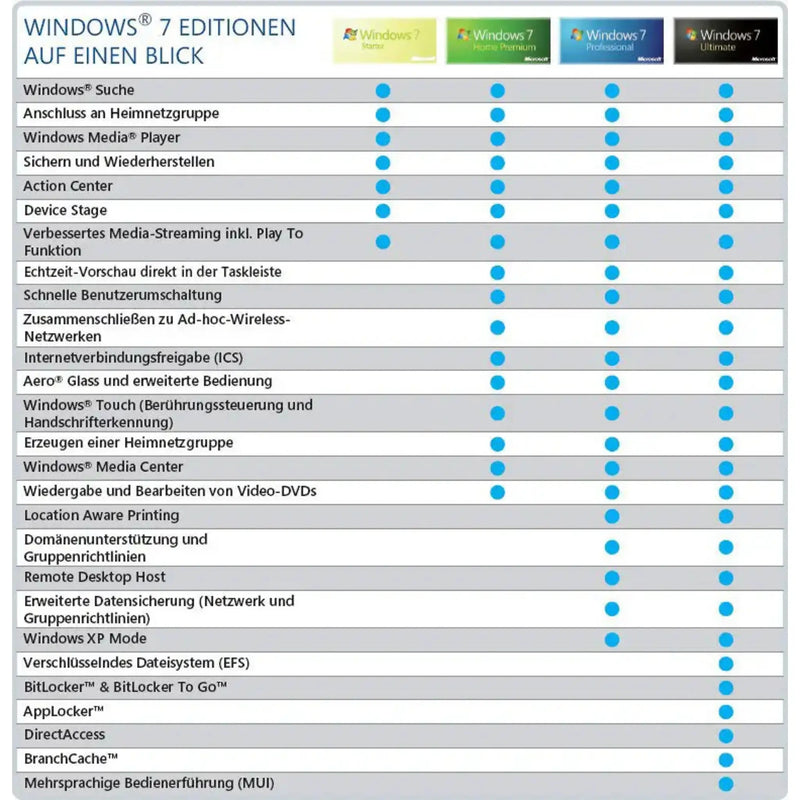
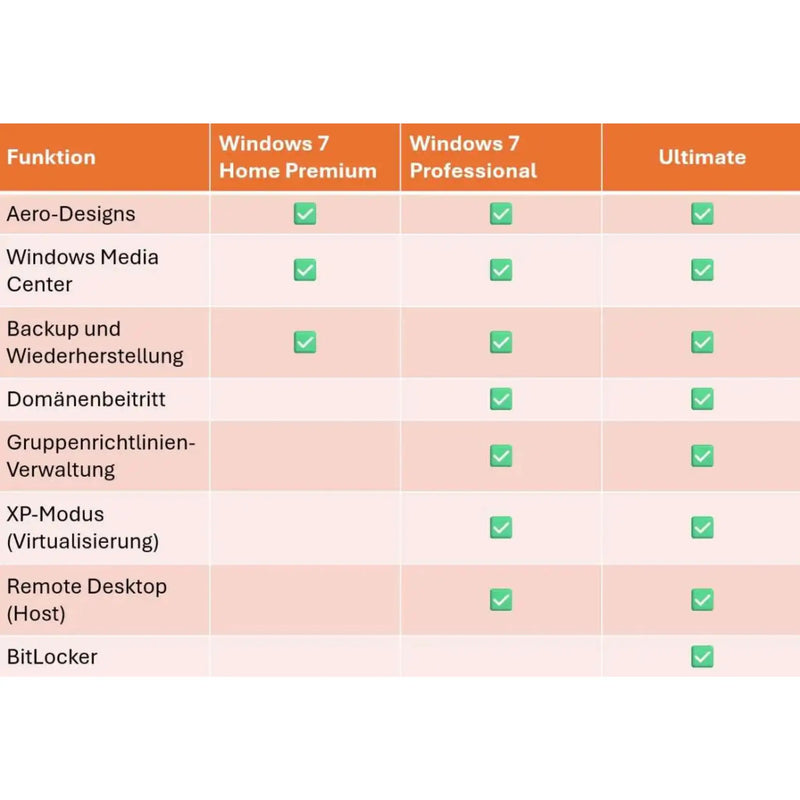
For these purposes we carry Windows 7 in three editions as a genuine licence: Windows 7 Professional with domain connectivity and XP Mode for corporate environments, Windows 7 Ultimate as the fully equipped version including BitLocker and language packs, and Windows 7 Home Premium for the classic home PC. We deliver all three as an OEM licence for 32- and 64-bit systems with instant delivery of the product key. Our advice: use Windows 7 only where it is technically required, keep such systems offline as far as possible and plan – where feasible – the move to Windows 10 or Windows 11.
Windows 8 and 8.1 today
Windows 8 and 8.1 occupy a special position: support ended in January 2023, and unlike Windows 7 the tile generation never built up a comparably loyal following. Today, Windows 8.1 is relevant almost only for devices that were shipped with exactly this system and whose software does not run under Windows 10 – a rare case. Anyone operating such a system should apply the same precautions as with Windows 7. In most cases, moving directly to Windows 10 or Windows 11 is the far better solution, especially as the system requirements of Windows 10 are barely any higher.
Windows 11 SE: the education edition
For the sake of completeness: Windows 11 SE is a lightweight, cloud-oriented edition for the education sector that ships pre-installed on inexpensive school notebooks. It is deliberately reduced to the essentials, launches apps from a managed environment and is not available in retail as an individual licence. Schools and educational institutions that need full functionality opt instead for Windows 11 Education, which is functionally largely equivalent to the Enterprise edition and can be licensed in the regular way.
Further editions and special cases
For the sake of completeness, a few further variants belong in the picture. Windows 11 Pro Education is an edition based on the Pro edition for schools and educational institutions – in contrast to the Education edition, which functionally corresponds to the Enterprise edition. It is generally provided through education licences and often comes pre-installed on school devices.
S Mode, by contrast, is not a separate edition but a locked-down operating mode of Windows Home or Pro: in S Mode, only apps from the Microsoft Store can be installed, which benefits security and battery life. Switching out of S Mode is free of charge and permanently possible – no separate licence is required for it. So anyone who owns a device “with Windows in S Mode” already has a fully fledged Windows licence.
Two younger family members come from the cloud world: Windows Enterprise Multi-Session allows several users to connect to the same virtual machine at the same time – this edition exists exclusively within Azure Virtual Desktop. Windows 365 provides complete “cloud PCs” on subscription, streamed via browser or app. Both are cloud services on a subscription model and are not sold as a classic individual licence – the very opposite of the perpetual licence you will find in this shop.
Finally, a few names from earlier generations deserve a mention: Windows 8 Pro, the business edition of the tile era with BitLocker and domain connectivity; the small Windows 7 editions Starter and Home Basic as well as Windows 7 Enterprise, distributed through volume agreements; and Windows RT, the discontinued ARM offshoot for tablets on which no classic desktop programs could be installed. These variants play practically no role today, but still occasionally turn up on used devices.
Windows Server for businesses
For networks, server services and professional IT infrastructures, Microsoft offers its own server operating systems. A Windows Server manages central tasks such as user accounts, file shares, databases, web services or virtual machines and is thus the backbone of many corporate networks. In our Windows Server category you will find the right licences.
The current version, Windows Server 2025, brings among other things hotpatching (security updates without a restart), powerful Hyper-V virtualisation, support for fast NVMe storage and connectivity to Microsoft Azure via Azure Arc. Security features such as Secured-Core-Server and Credential Guard reliably protect critical services. The proven predecessors Windows Server 2016, 2019 and 2022 also remain in use and are available depending on the use case. For licensing, a distinction is usually made between the Standard and the Datacenter edition: Standard is suitable for environments with little virtualisation, Datacenter for highly virtualised data centres.
Older server generations also continue to play a role in practice. Windows Server 2008 R2 is in demand for legacy environments whose applications or drivers no longer run on newer versions – extended support, however, ended as long ago as January 2020, which is why such systems should be operated as isolated from the internet as possible; alongside the Standard edition, an Enterprise edition also exists. Windows Server 2012 and 2012 R2 reached the end of their support in October 2023 and today are likewise relevant only for existing environments. For small businesses, Microsoft additionally offers the Essentials edition, which manages without separate access licences and is aimed at businesses with up to 25 users. And anyone providing remote desktop sessions for several employees needs, in addition to the regular CALs, so-called RDS CALs (Remote Desktop Services) for the accessing users or devices.
Important with Windows Server: in addition to the server licence itself, many scenarios require so-called access licences (Client Access Licenses, CALs) for the accessing users or devices. If you are unsure which server edition and how many CALs you need, our German-speaking support team is happy to help you put together the right combination.
Which Windows version is right for me?
The right Windows version depends above all on your hardware and your use case. The following buying advice by user group will help you decide:
For gamers
Anyone wanting to play today's games at the best quality and highest performance is best served by Windows 11. Features such as DirectX 12 Ultimate, Auto HDR and DirectStorage are tuned to modern graphics cards and fast SSDs and get more out of the hardware. For gaming, the Home edition is generally sufficient.
For students and everyday private use
For word processing, research, streaming, video calls and everyday use, Windows 11 Home is entirely sufficient. Windows 10 Home is also still a solid, often cheaper choice here, provided you bear in mind that support has already ended.
For the self-employed and freelancers
The self-employed benefit from Windows 11 Pro: BitLocker encrypts sensitive customer and business data, remote desktop allows remote access to the office PC, and the invoice with VAT shown separately can be deducted for tax purposes. The Pro edition is the right balance between range of features and price for sole traders.
For creatives and video editing
For image, video and audio editing, performance and compatibility are decisive. Windows 11 supports current graphics and storage technologies optimally and runs stably with the common creative programs. Anyone working with large project files also benefits from the better memory management of modern 64-bit systems.
For businesses and home office
Depending on their size, companies with several workstations opt for Windows 11 Pro or Enterprise and – for server-based services – for Windows Server with the appropriate CALs. Central management, advanced security and domain connectivity are decisive here. For the home office, the Pro edition is particularly practical, as it enables secure working from home with remote desktop and BitLocker.
Which software runs on Windows?
A key reason for the popularity of Windows is the huge selection of compatible software. Practically every program for everyday PC use is available for Windows: office software such as Microsoft Office, web browsers, e-mail programs, accounting and tax software, professional tools for image, video and audio editing, CAD and design programs, industry solutions for trades, retail and medicine, and of course by far the largest selection of PC games. Hardware compatibility is outstanding too – from printers and webcams to graphics tablets, nearly every device is supported out of the box. This combination of software and hardware diversity makes Windows the most obvious choice for most users and is a decisive advantage over other operating systems.
Perpetual licence or subscription?
A common misunderstanding concerns the difference between a Windows perpetual licence and a subscription. Windows itself is sold as a perpetual licence: you pay once and may use the corresponding Windows version permanently – with no monthly fees. These are precisely the perpetual licences you will find at Karinex.
A subscription, on the other hand, primarily concerns Microsoft 365 (formerly Office 365), that is the Office programs Word, Excel, Outlook and PowerPoint along with cloud storage. These are offered on a monthly or annual subscription. Anyone who wants no ongoing costs can alternatively buy Office as a perpetual licence too. Windows as the operating system and Office as the program suite are therefore two separate products with different licensing models – for a fully equipped workstation you generally need both.
Installation and activation step by step
Setting up Windows is straightforward, even without deep IT knowledge. After buying at Karinex, proceed as follows:
Step 1 – Receive your product key: for digital products you receive your product key within a few minutes by e-mail; for DVD products it is included with the delivery. Keep the key in a safe place.
Step 2 – Create installation media: download the official Media Creation Tool or the ISO file from Microsoft and use it to create a bootable USB stick, or start the upgrade directly from within the running system. With an installation DVD, you simply insert it.
Step 3 – Install Windows: follow the setup wizard. Choose your language, time zone and keyboard layout, decide on a fresh installation or an upgrade, and wait until the files have been copied. The PC restarts several times during this process.
Step 4 – Activate: during installation, or afterwards under Settings > System > Activation, enter your product key. Windows connects to the Microsoft servers and activates the licence permanently. As soon as "Windows is activated" is shown, everything is ready.
Step 5 – Install updates: finally, check under Windows Update whether any updates are available and install them, so that your system is up to date.
Practical tips and frequently asked questions about Windows
The same questions come up again and again around the day-to-day use of Windows. Here you will find short, practical answers to the most common ones.
How do I take a screenshot in Windows?
For a screenshot of the entire screen, press the Print Screen key (often labelled "PrtScn" or "Print Scrn") – the image is placed on the clipboard and can be pasted into a program. More convenient is the keyboard shortcut Windows key + Shift + S: this opens the Snipping Tool, with which you can mark a freely chosen area and copy or save it directly. With Windows key + Print Screen you additionally save an image file automatically in the "Pictures/Screenshots" folder.
How do I fix a Windows Update error?
If an update gets stuck or an error message appears, the built-in troubleshooter often helps: open Settings > System > Troubleshoot > Other troubleshooters and run the troubleshooter for Windows Update. If errors persist, restarting the PC, checking for updates again or clearing the update cache can help. Also make sure there is enough free storage space and that the internet connection is stable.
How do I fix a slow Windows startup?
If Windows starts slowly, the cause is often too many startup programs. Open Task Manager (keyboard shortcut Ctrl + Shift + Esc), switch to the Startup tab and disable programs that are not needed immediately at boot. Enabling the fast startup option in the power options, having enough free storage space and using an SSD instead of a traditional hard drive also noticeably speed up system startup.
How do I restart the Bluetooth service?
If Bluetooth stops working reliably, restarting the relevant service can help. Press Windows key + R, type services.msc and confirm with Enter. Find the entry Bluetooth Support Service in the list, right-click it and choose Restart. Bluetooth should then be available again; otherwise a full restart of the computer often helps.
How do I check whether Windows is activated?
You can see whether your Windows licence is active under Settings > System > Activation. There it says either "Windows is activated" or a note that activation is required. If Windows is not yet activated, simply enter your product key at this point.
How much memory does my PC have and which Windows version is running?
You get a quick overview of memory, processor, system type and the installed Windows version under Settings > System > About. Alternatively, press Windows key + Pause to go directly to the system information.
How do I uninstall a program?
You remove programs under Settings > Apps > Installed apps: find the entry, click the three dots and choose Uninstall. This frees up space on the hard drive and removes software you no longer need.
How do I enable Dark Mode?
You switch on dark mode under Settings > Personalisation > Colours by selecting "Dark" as the mode. This is easier on the eyes in low ambient light and looks particularly pleasant on modern displays.
How do I create a backup of my data?
Back up important files regularly to guard against data loss. Windows offers File History and backup to an external hard drive for this; in addition, data can conveniently be backed up to OneDrive in the cloud. Especially before a fresh installation or an upgrade, an up-to-date backup is strongly recommended.
Can I transfer my licence to a new PC?
Whether a transfer is possible depends on the licence type: a Retail licence may be moved to a new PC, provided it was deactivated on the old device beforehand. An OEM licence, by contrast, remains permanently tied to the first device. When buying, therefore, pay attention to the stated licence type if transferability is important to you.
Important Windows terms explained simply
You will keep coming across technical terms around Windows. Here are the most important ones explained briefly and clearly:
- Product key – the string of characters with which you activate Windows and unlock it as a genuine licence.
- Activation – the process by which Windows is confirmed as validly licensed via the Microsoft servers.
- ISO file – a digital image of the installation medium, from which a USB stick or a DVD can be created.
- TPM 2.0 – a security chip that protects cryptographic keys and is required for Windows 11.
- Secure Boot – a startup protection feature that prevents manipulated software from being loaded during boot.
- UEFI – the modern successor to the classic BIOS, which controls the PC's startup process.
- CAL (Client Access License) – an access licence needed with Windows Server for accessing users or devices.
When is Windows 12 coming?
At the present time, Microsoft has not officially announced a Windows 12 with a fixed release date. By all accounts, the successor to Windows 11 is in development, but no reliable dates are available. It is foreseeable that Microsoft will in future rely even more heavily on artificial intelligence integrated deep into the operating system, on closer interlinking with the Azure cloud platform, and on new security features against current threats. Until then, Windows 11 remains the current, actively developed version – so a Windows 11 licence bought today is by no means a bad investment, but the right state of the art.
Security and privacy in Windows
Modern Windows versions come with extensive protective features out of the box, so that for most users no additional security software is needed. The built-in Windows Defender protects in real time against viruses, ransomware and other malware and updates itself automatically. Windows Hello enables a secure, biometric sign-in, and BitLocker (in the Pro edition) encrypts entire drives, so that your data is protected even if the device is lost or stolen.
Crucial for security is that your system is always supplied with the latest updates – this is precisely why a valid genuine licence is so important: only with it does Windows receive security updates permanently and reliably. In the privacy settings you can also specify exactly which diagnostic data is transmitted and which apps may access the camera, microphone or location. We recommend going through these settings once at leisure after installation and adjusting them to your personal preferences.
Delivery options: digital or as a DVD
You receive your Windows licence at Karinex – depending on the product – in one of two ways:
- Digital (ESD) – the product key and download link arrive immediately by e-mail, usually within a few minutes of payment being received. This lets you start the installation straight away, without waiting for a postal delivery.
- OEM with DVD – for selected products we send a physical installation DVD by post; delivery usually takes place within 2–4 working days within Germany.
Which delivery method applies to a product can be found in the respective product description. For most customers, digital delivery is the fastest and most convenient option; the DVD is handy if you would like to have a physical medium at hand or are setting up a PC without an existing internet connection.
First steps after installation
Once Windows is installed and activated, a few steps are worthwhile to set the system up optimally. First check under Windows Update whether all updates and drivers are installed – graphics and network drivers in particular ensure stability and performance. Then go through the privacy settings and specify which diagnostic data is transmitted and which apps may access the camera, microphone and location.
After that, set up your default programs – such as your preferred browser and default e-mail program – and, if required, sign in with your Microsoft account to synchronise settings and OneDrive. Finally, enable a data backup so that important files are backed up regularly. With these few steps, your Windows is clean, secure and ready to use.
Windows and Microsoft Office – the perfect combination
Windows is the foundation, but for everyday work most PCs also need an Office suite. Word, Excel, Outlook and PowerPoint run optimally on Windows and cover word processing, spreadsheets, e-mail and presentations. At Karinex, alongside Windows you also get the matching Microsoft Office licences – either as a perpetual licence with no ongoing costs or as a Microsoft 365 subscription. This lets you fully equip your computer in one step: operating system and office software from a single source, both as genuine, original licences with German-speaking support.
Buy Windows licences safely and legally
When buying software licences, trust is decisive. At Karinex you receive exclusively genuine product keys that are activated permanently via the official Microsoft servers. You buy from a provider based in Germany, receive a proper invoice with VAT shown separately, and can turn to our German-speaking support at any time if you have questions. Payment is SSL-encrypted via established providers such as Klarna, Apple Pay or credit card. This is complemented by our 100-day money-back guarantee: Within 100 days of purchase we refund the full purchase price on request, no questions asked. Your statutory right of withdrawal remains unaffected. This way you buy your Windows licence with peace of mind – transparent, secure and legally sound.
Further frequently asked questions about Windows
Is an internet connection needed to activate Windows?
In the vast majority of cases, yes: activation takes place online via the Microsoft servers and takes only a few seconds. After the one-time activation, you can of course also use Windows offline. A stable internet connection additionally makes it easier to download the installation files and the latest updates.
How do I find my Windows product key again?
You will find the key you bought at Karinex in the order confirmation or the delivery e-mail. Keep this e-mail in a safe place. On a system that has already been activated, the licence is digitally linked to the device and – if connected – to your Microsoft account, so that a fresh installation on the same PC is usually reactivated automatically.
What happens when hardware is replaced?
With a Retail licence you may reactivate Windows after a hardware change; in some circumstances this requires signing in with the linked Microsoft account or a brief activation via support. OEM licences, by contrast, are tied to the original motherboard. When buying, therefore, pay attention to the licence type if a later hardware swap is planned.
How do I set up two monitors?
Connect the second screen and press Windows key + P. Choose "Extend" to enlarge the work area across both monitors. Under Settings > System > Display you then set the arrangement, resolution and main display. A second monitor considerably boosts productivity when working with several windows at once.
How do I change the default browser?
Open Settings > Apps > Default apps, find the browser you want and set it as the default. Links will then automatically open in the browser you prefer.
How can I make Windows faster overall?
Besides tidying up the startup programs, switching to an SSD, having enough free storage space, uninstalling programs you don't need and applying regular updates all help. Disabling elaborate visual effects under the performance settings can also bring a noticeable speed boost on older devices.
Can Windows be used for free and permanently?
Windows can indeed be tried out for a while without activation, but is then limited in its features and shows an activation notice. For permanent, unrestricted and legally sound use, a valid genuine licence is required – and that is exactly what you get at Karinex at fair prices.
How do I start Windows in Safe Mode?
Safe Mode loads Windows with a minimum of drivers and is ideal for troubleshooting. Open Settings > System > Recovery and click Restart now under "Advanced startup". Then choose Troubleshoot > Advanced options > Startup Settings and restart; there you can select Safe Mode. This lets you narrow down problems that are hard to find in normal operation.
What is the difference between Shut down and Hibernate?
When you shut down, all programs are closed and the PC is switched off completely – this saves energy and ensures a fresh start. Hibernate saves the current working state to the hard drive and then switches the computer off; at the next start all windows and documents are open exactly as before. Hibernate is handy when you want to interrupt your work and pick it up again seamlessly later.
How do I uninstall a faulty update?
If an update causes problems, it can be removed: open Windows Update > Update history > Uninstall updates, select the update in question and remove it. Afterwards you can – if necessary – temporarily pause the automatic reinstallation until a corrected version is available.
Do I also need an antivirus program?
For most users the protection built into Windows is sufficient: Windows Defender works in real time, updates itself automatically and reliably detects current threats. Additional security software is therefore generally not strictly necessary. Anyone with a particular need for protection or wanting extra features can of course still use a separate antivirus program – but it is not compulsory for normal everyday use.
Why buy Windows at Karinex?
At Karinex you buy Windows as a verified genuine licence at fair prices – with the service of a German provider. Here is what you can expect:
- Fast delivery – digital products within minutes by e-mail, DVD products reliably by post.
- Genuine licences – real product keys that are activated permanently via the Microsoft servers.
- German-speaking support – personal help with selection, installation and activation.
- Secure payment – SSL-encrypted, with Klarna, Apple Pay, credit card and other methods.
- Invoice with VAT – fully tax-deductible for the self-employed and businesses.
- 100-day money-back guarantee – should you not be satisfied, we refund the full purchase price.
Outlook: the future of Windows
Windows will remain the defining operating system for PCs in the years to come as well. The clear trend is towards artificial intelligence that thinks along as an assistant right inside the system, towards seamless cloud connectivity across devices, and towards even stronger security mechanisms at the hardware level. For you as a user, this means: an up-to-date, licensed Windows is the best foundation for benefiting from these developments and using your PC securely and productively for a long time.
Select the Windows version that suits you above – whether the current generation Windows 11, the proven Windows 10 or a Windows Server licence for your business. If you have questions about the right version or edition, our German-speaking support is available to you by e-mail at any time. This way you are guaranteed to find the licence that matches your hardware and your requirements.
Whether everyday private use, gaming, home office, self-employment or business IT: with a genuine licence from Karinex you lay the foundation for a stable, secure and long-term supported system. Take a moment to choose the right edition – and then get going with a cleanly licensed Windows. We wish you much enjoyment and productive hours with your new operating system.