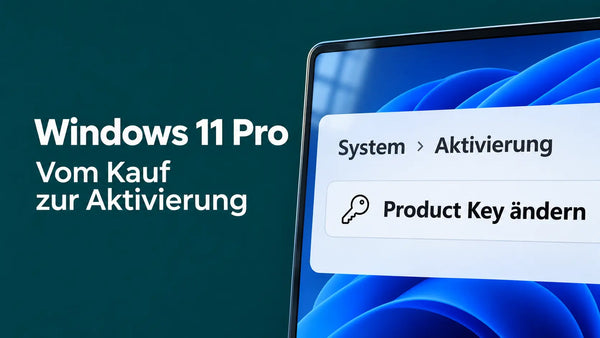


The short answer: You activate Windows 11 under Start → Settings → System → Activation. There, next to “Change product key”, select the “Change” button and enter your 25-character product key. Without a key, activation only works with a digital entitlement, which you get, for example, through the free upgrade from Windows 10. With it, Windows 11 activates automatically online on the same device, even after a reinstall, as long as you haven’t replaced significant hardware such as the motherboard.
This guide shows all the ways to activate Windows 11: with a product key, with a digital entitlement, after a hardware change, without internet and from the Command Prompt. You’ll also learn where to find your key, how to retrieve it from the firmware and what the activation error codes mean. The steps and the meaning of the error codes come from Microsoft’s official pages (as of November 2026, sources at the end of the article).
- Where: under Start → Settings → System → Activation. That’s where you see the status and enter a new product key.
- What you need: a 25-character product key or a digital entitlement. Without one of the two, Windows can’t be activated.
- The edition has to match: A key activates the edition it’s intended for. With a Pro key, an activated Windows 11 Home becomes Windows 11 Pro.
- Misplaced your key? It’s in the confirmation email from your purchase, on a card in the packaging or on a sticker on the device. Microsoft only keeps a record of keys for purchases from its own online store.
- Error code? Run the troubleshooter first. The section on error codes explains what the codes mean.
- Getting Windows 11 for free only works through the upgrade from Windows 10, if your PC meets the requirements. From Windows 7 and 8.1, there is no longer a free path.
Want to buy right away? Go to Windows 11 Home or Windows 11 Pro, each as a product key with instant download.
How do I activate Windows 11 with a product key?
You need administrator rights on the PC to do this. Check for updates first: open Start → Settings → Windows Update and select “Check for updates”. Then follow these steps:
- Open Start → Settings → System → Activation.
- If there’s a section for upgrading your edition of Windows, expand it.
- Next to “Change product key”, select the “Change” button. If the User Account Control window appears, enter the user name and password of an administrator and select “Yes”.
- In the “Change Product Key” window, enter the 25 characters of your product key and select “Next”.
- If the key is valid, select “Upgrade your edition of Windows” or “Activate Windows”. The “Activation” page then shows the new status.
A product key activates the edition it’s intended for. With a key for Windows 11 Pro, you switch an activated Windows 11 Home to Pro without reinstalling: after “Next”, the upgrade starts. A key for Windows 11 Enterprise, on the other hand, activates neither Home nor Pro, and Windows then reports an error such as 0xC004F210. Our guide Upgrade Windows 11 Home to Pro shows how the switch from Home to Pro works.
Entering the key during installation
When you install Windows from scratch, Setup asks for a product key and installs the edition that matches your key. You can also skip this step and enter the key after the installation under “Change product key”. If the device has a manufacturer’s key stored in its firmware that matches the installed version and edition, Setup applies it automatically. Such a key can also mean that Setup doesn’t ask for a key at all and installs a different edition. In that case, switch the edition afterwards with your key under “Change product key”.
Reinstalling Windows: do you need the key again?
If you have a digital entitlement, select “I don’t have a product key” during the reinstall. Windows 11 then activates automatically online after the installation. Install the same edition as before, for example Home again if Home was activated. Without a digital entitlement, have your product key ready. Back up your files first, for example to an external drive, a USB flash drive or OneDrive. For the installation media, you need a USB flash drive with at least 8 GB; our Windows 11 download page shows how to get the installation file.
How do I check if Windows 11 is activated?
Open Start → Settings → System → Activation. Next to “Activation status”, Windows shows one of these messages:
| Message | What it means |
|---|---|
| “Windows is activated” | Windows is activated, but your Microsoft account isn’t linked yet. Link it as described in the section on the Microsoft account. |
| Message that Windows was activated digitally | Windows is activated, but your Microsoft account isn’t linked to the digital entitlement. Link it as described in the section on the Microsoft account. |
| Message that Windows was activated digitally and is linked to your Microsoft account | Windows is activated, and the digital entitlement is linked to your Microsoft account. |
| “Windows is not activated” | Windows isn’t activated. The error message shown tells you why. You may need to buy Windows 11. |
The command slmgr /dli shows more detailed information: open the Command Prompt as administrator and enter it, and Windows then displays information about the activation.
Retrieve your Windows 11 key: where do I find my product key?
Where your product key is depends on how you got Windows. Microsoft only keeps a record of keys for purchases from its own online store. The order history of your Microsoft account shows whether you bought from Microsoft.
| How you got Windows | Where the product key is |
|---|---|
| New PC with Windows preinstalled | In the device’s packaging or on a sticker on the back or bottom of the device, which Microsoft calls COA. Carefully scratch off the gray layer over the key with a coin or a fingernail. |
| Windows bought from a retailer (boxed) | On a label or card inside the box that Windows came in. |
| Bought digitally from a retailer | In the confirmation email after your purchase or in a digital locker that you can access through the retailer’s website. |
| Bought digitally from a Microsoft website | In the confirmation email after your purchase. |
| Free upgrade from Windows 10 | No key: you have a digital entitlement. |
| Upgrade to Pro bought in the Microsoft Store app | No key: you have a digital entitlement, and an email confirms the purchase. |
| Company with a volume agreement or MSDN subscription | In the web portal of the respective program. |
| Bought from KARINEX | In the email you receive from us after your payment has been approved. Also check your spam folder. If the email is missing, write to us using the contact form. |
Retrieving the key from the firmware
On some devices with Windows preinstalled, the manufacturer has stored the product key in the firmware. A PowerShell command shows whether this is the case on your device. Search for “PowerShell” on the taskbar, right-click the result, select “Run as administrator” and enter:
Get-CimInstance -ClassName SoftwareLicensingService | Format-List OA3x*If the result shows a 25-character key, the manufacturer stored it in the firmware. If the fields stay empty, no key is stored there. Microsoft doesn’t describe this command on its activation help pages. If you reinstall the edition that this key matches, Setup applies it automatically.
Can I activate Windows 11 without a product key or for free?
Without a product key, Windows 11 only activates with a digital entitlement. You get one, for example, through the free upgrade from Windows 10 to Windows 11 or by buying the upgrade to Pro in the Microsoft Store app. The digital entitlement is associated with your hardware and your Microsoft account. If you have neither a key nor an entitlement, Windows can’t be activated: in that case, buy a product key or open the Microsoft Store with the button on the “Activation” page.
We advise against programs that promise activation without a key. For error 0xC004E003, Microsoft names third-party software that has changed system files needed for activation as the cause. According to Microsoft, the fix is then to restore the system files to an earlier point in time, which removes the software installed after that point.
Getting Windows 11 for free only works through the upgrade from Windows 10, if your PC meets the requirements. More on this in the section on moving from Windows 10.
How do I link activation to my Microsoft account?
Link the digital entitlement to your Microsoft account before you replace hardware: after a hardware change, the troubleshooter can only reactivate Windows with the connected Microsoft account. You must be signed in as an administrator to do this. To see whether your account is an administrator account, go to Start → Settings → Accounts → Your info: “Administrator” appears under your name. The administrator account should also be your Microsoft account.
- Open Start → Settings → System → Activation.
- Select “Add an account”.
- Enter your Microsoft account and your password and select “Sign in”.
The “Activation” page then shows the message that Windows was activated digitally and is linked to your Microsoft account.
Reactivate Windows 11 after a hardware change
The digital entitlement is associated with your hardware. After significant changes, such as replacing the motherboard, Windows may no longer find a matching entitlement when it restarts and is then no longer activated. If you linked your Microsoft account beforehand, reactivate Windows with the troubleshooter. It’s only available while Windows isn’t activated, and you must be signed in as an administrator.
- Open Start → Settings → System → Activation and run the troubleshooter.
- If it reports that Windows can’t be activated, select “I changed hardware on this device recently” and then “Next”.
- Sign in with the linked Microsoft account and your password and select “Sign in”.
- In the list, choose the device you’re using right now, select the check box next to “This is the device I’m using right now” and select “Activate”.
The troubleshooter doesn’t work with a different Microsoft account. If your device doesn’t appear in the list, check that you’re signed in with the same account you linked. Only the same edition that was activated before is reactivated.
If you had a product key installed before the change, enter it again under “Change product key”. If Windows was preinstalled by the manufacturer, you may need a new key after replacing the motherboard. If an independent repair shop repaired your device, ask them whether the repair required a new Windows 11 entitlement. All the steps in detail: Activate Windows 11 Pro after a hardware change.
Activate Windows 11 without internet (offline)
Without internet, you activate Windows 11 with two numbers: your PC shows an Installation ID, and Microsoft gives you a Confirmation ID for it. Microsoft explicitly asks you not to call the phone number shown for this, but to use the Product Activation Portal. If the PC has no internet, open the portal on another device, for example your smartphone. Which button you see on the PC depends on the build of Windows 11. winver shows the version and build: type it into the search box on the taskbar and select it in the list of results.
- On the PC, open Start → Settings → System → Activation. From build 26100.8973 or 26200.8973 onward, select “Automated Help”. In older versions, select “Activate by Phone”, then your country or region and “Next”. Windows now displays the Installation ID.
- On the other device, open Microsoft’s Product Activation Portal, pass the Captcha challenge and sign in. Select Activate a Microsoft Product → Windows → Windows 11.
- Enter the Installation ID and select “Submit”. The portal shows you the Confirmation ID.
- On the PC, select “Enter Confirmation ID”, enter the number and select “Activate Windows”.
If you see neither “Automated Help” nor “Activate by Phone”, use the Command Prompt. Search for “Command” on the taskbar, right-click “Command Prompt” and select “Run as administrator”. The command slmgr /dti shows the Installation ID in a Windows Script Host dialog. Enter the Confirmation ID from the portal with slmgr /atp: followed by a space and the number without hyphens or spaces. slmgr /dli shows whether the activation worked.
From build 26200.7922 onward, according to Microsoft, SLUI may no longer provide the expected activation experience or may no longer be available. In that case, use Automated Help or the slmgr commands. According to Microsoft, Windows 11 Pro Education and Windows 11 Pro for Workstations can only be activated over the internet, not by phone. Windows 11 Home needs an internet connection and a Microsoft account for the initial setup anyway.
Activate Windows 11 from the Command Prompt (cmd, slmgr and slui)
With the slmgr command, you can install and activate a product key without going through Settings. Open the Command Prompt as administrator: search for “Command” on the taskbar, right-click “Command Prompt” and select “Run as administrator”. Then enter, one after the other:
slmgr /ipk XXXXX-XXXXX-XXXXX-XXXXX-XXXXX
slmgr /ato
Instead of the Xs, enter your product key. The first command installs the key, the second activates Windows online. The main commands at a glance:
| Command | What it does |
|---|---|
slmgr /ipk with key |
Installs a product key made up of five blocks of five characters each. A key that’s already installed is replaced. |
slmgr /ato |
Activates Windows online with the installed key. |
slmgr /dli |
Shows information about the activation. |
slmgr /dlv |
Shows detailed information about the activation. |
slmgr /xpr |
Shows the expiration date of the activation. This matters above all for company devices with KMS: activations with a retail key and with MAK don’t expire. |
slmgr /dti |
Shows the Installation ID for activation without internet. |
slmgr /atp with Confirmation ID |
Activates Windows with the Confirmation ID from the Product Activation Portal. |
slmgr /upk |
Removes the installed product key. After a restart, no valid product key is installed anymore. Only use this command if you really want to. |
Microsoft describes slmgr in detail in the Windows Server documentation and lists some of the commands for Windows 11 on its page about activation without internet. Type the command SLUI 04 (also slui 4) into the search box on the taskbar, select it in the list of results and follow the instructions on the screen. From build 26200.7922 onward, according to Microsoft, SLUI may no longer be available. Automated Help or the slmgr commands from the section on activation without internet will then help.
Activation error codes and what they mean
Microsoft recommends first running the automated troubleshooter in the “Get Help” app when an error occurs. For several codes, Microsoft also names the troubleshooter on the “Activation” page. If Windows wasn’t activated after a free upgrade, install the latest version of Windows 11. If you bought the key from KARINEX, write to us with your order number and a photo of the message using the contact form. Our customer service is there for you daily from 08:00 to 23:00 (German local time).
0xC004F050 and 0xC004C060: the key won’t activate Windows
Microsoft also counts 0xC004C4A2, 0x803FA067, 0xC004C001, 0xC004C004, 0xC004F004, 0xC004C007, 0xC004F005, 0xC004C00F, 0xC004C010, 0xC004C00E, 0xC004C4A4, 0xC004C4A5, 0xC004B001 and 0xC004F010 in the same group. Meaning according to Microsoft: the product key you entered can’t activate Windows. Enter a different key or buy a new one. Right after an upgrade to Windows 11, the activation servers may be busy: try again after a short while. After a free upgrade and a reinstall, Windows 11 should activate automatically as long as you haven’t changed significant hardware such as the motherboard. If problems continue, contact Microsoft customer support.
0x80072F8F: check the date, time and connection
Meaning according to Microsoft: the date and time on the device aren’t set correctly, or Windows can’t connect to the online activation service and can’t verify your product key. Check the date and time under Start → Settings → Time & language → Date & time. Also check your internet connection: type “network troubleshooter” into the search box on the taskbar and follow the instructions. If the network troubleshooter doesn’t find a problem, restart the device.
0xC004F074, 0x8007232B, 0xC004F038 and 0x8007007B: keys for companies
Meaning according to Microsoft: you entered a key for the Enterprise edition to activate Windows 11 Home or Pro. Enter a key that matches the installed edition. On a work device, the error can also appear if it isn’t connected to your workplace’s network. Connect it to that network. If the error still appears, the network settings may need to be changed; ask your company’s support about this. If your company has no support, enter the product key again under “Change product key”.
0xC004F213 and 0xC004F211: after a hardware change
Meaning according to Microsoft: with 0xC004F213, Windows didn’t find a product key on your device; with 0xC004F211, your device’s hardware has changed. The entitlement is associated with your hardware. Significant changes such as replacing the motherboard can prevent Windows from finding a matching entitlement when it restarts. If you installed a product key before the change, enter it again under “Change product key”. If you were signed in with your Microsoft account before the change, run the troubleshooter on the “Activation” page. If it doesn’t succeed, it shows a link to reactivation after a hardware change. If Windows was preinstalled and you replaced the motherboard, you may need a new key, which you can buy using the Microsoft Store button on the “Activation” page.
0x803F7001 and 0x800704CF: no valid entitlement found
Meaning according to Microsoft: no valid Windows 11 entitlement was found for your device. If you have a valid product key, select “Change product key” on the “Activation” page and enter the 25 characters. Without a key, buy Windows using the Microsoft Store button. You can usually find the key in the confirmation email from your purchase, in your device’s packaging or on the sticker on the back or bottom of the device, which Microsoft calls COA. If you replaced significant hardware such as the motherboard, run the troubleshooter on the “Activation” page. A reactivation may be necessary.
0xC004C003: the key isn’t valid
Meaning according to Microsoft: the product key you entered isn’t valid. Product keys are unique and assigned to a specific user for installation on a single device. If a key has been installed on several devices, or someone has tried to do so, it’s marked as “not valid”. You then need a different key that’s unique to your device. If you bought Windows 11 from a reseller and expect the key to be valid, contact the reseller. If Windows 11 came preinstalled and the error appears the first time you turn the device on, contact the device manufacturer. For other problems, Microsoft names the troubleshooter. Also check whether you have your 25-character key on paper. If your device was repaired at an independent repair facility, ask them whether the repair required a new Windows 11 entitlement. If the device is new and Windows has never been activated, contact the manufacturer.
More error codes at a glance
| Error code | Meaning according to Microsoft | What you can do |
|---|---|---|
| 0xC004F212 | The product key doesn’t match this edition. This happens, for example, if you choose a different edition when reinstalling with a digital entitlement. | Run the troubleshooter. It detects a valid entitlement for a different edition and shows the next steps. |
| 0xC004F034 | The key isn’t valid or is for a different version of Windows. | Enter a valid key for the installed version and edition. If the device connects to your company’s KMS server, ask your company’s support. |
| 0xC004F210, 0xC004E016 | The key is for a different edition; a key for Enterprise, for example, doesn’t activate Home. After an upgrade, the installed edition can also differ from the digital entitlement. | Enter a matching key, reinstall the matching edition or buy Windows in the Microsoft Store. The troubleshooter can install the right edition. |
| 0xC004FC03 | No internet connection, or a firewall is blocking online activation. | Check the connection and firewall. Alternatively, activate Windows without internet as described above. Pro Education and Pro for Workstations can only be activated over the internet. |
| 0xC004E028 | An activation is already in progress for the device. | Wait: Windows will be activated as soon as the first request is completed. |
| 0x8007267C | No internet connection, or the activation server is temporarily unavailable. | Check your internet connection and firewall. |
| 0xD0000272, 0xC0000272, 0xC004C012, 0xC004C013, 0xC004C014 | The activation server is temporarily unavailable. | Windows will be activated automatically as soon as the service is available again. |
| 0xC004C008, 0xC004C770, 0x803FA071 | The key is already in use on another device, or on more devices than Microsoft’s terms of use allow. | Each device needs its own key. Buy Windows using the Microsoft Store button; if the button is missing, ask your company’s support. If you replaced the motherboard and have a valid key, try activating with the Installation ID and Confirmation ID (except for Pro Education and Pro for Workstations). |
| 0xC004F00F | A key for Windows Enterprise was entered on Windows 11 Home or Pro. | Enter a key that matches your edition. |
| 0xC004C020 | A key from a company’s volume agreement has been installed on more devices than allowed. | You may need a different key. Ask your company’s support. |
| 0xC004E003 | Third-party software has changed system files that are needed for activation. | Restore the system files to an earlier point in time. This removes software you installed after that point. Your personal files remain unaffected. |
| 0x87E10BC6 | An error with the activation server or the activation service. | Wait a few minutes and run the troubleshooter. Then open the Store app using the Microsoft Store button and select “Try again” if it shows a problem. |
| 0x80070652 | Update components are missing or corrupted, or the connection is weak. | Run the Windows Update troubleshooter and check the strength of your connection. |
| 0x80004005 | Microsoft only names the fix. | Run the troubleshooter. If it doesn’t help, you may need to reset the device using the recovery options. |
| Notice that the activation will expire soon | A volume version of Windows is installed on the device, and its activation is usually managed by your company. | Contact your company’s administrator. |
| Other codes | For other codes, Microsoft refers you to Windows Help. | In Windows Help, enter the code in the “Search for Help” box and only try results that fit your situation. |
Moving from Windows 10 to Windows 11
The upgrade from Windows 10 to Windows 11 is free if your PC meets the requirements. For the direct upgrade, you need Windows 10, version 2004 or later, with the September 14, 2021 security update or later. Whether your PC qualifies is shown by Microsoft’s PC Health Check app with “Check now” or by our Windows 11 Check. Microsoft’s requirements at a glance:
- Processor: 1 GHz or faster with at least 2 cores, compatible and 64-bit, or a system on a chip (SoC)
- RAM: 4 GB
- Storage: 64 GB or greater
- Graphics card: compatible with DirectX 12 and WDDM 2.0
- System firmware: UEFI, Secure Boot capable
- TPM: Trusted Platform Module version 2.0
- Display: at least 720p, larger than 9 inches, 8 bits per color channel
According to Microsoft, a PC that doesn’t meet the requirements isn’t supported and doesn’t receive updates. After the upgrade, you have 10 days to go back to Windows 10 and keep the files and data that were migrated. Support for Windows 10 ended on October 14, 2025: since then, there have been no more free updates, no technical support and no security updates.
If you stay on Windows 10, you can enroll in Extended Security Updates (ESU) until October 12, 2027. The requirements are Windows 10, version 22H2, as Home, Pro, Pro Education or Pro for Workstations, the update KB5126256 and the latest update, as well as an administrator account. In the European Economic Area, you can enroll with a Microsoft account at no additional cost as long as you stay signed in to the PC with the same account. If you stop signing in with this account, the updates stop after up to 60 days. You then have to enroll again. Alternatively, Microsoft offers a one-time purchase. You enroll under Settings → Update & Security → Windows Update with “Enroll now”. There is no technical support with ESU either.
Support for Windows 7 ended on January 14, 2020, and for Windows 8.1 on January 10, 2023. Microsoft no longer offers a free path to Windows 11 for these versions and has removed the earlier path. According to Microsoft, older PCs probably don’t meet the requirements of Windows 11. If your PC does meet them, you need the full version of Windows 11 Home or Pro. The installation overwrites the drive, so back up your files beforehand and reinstall your programs afterwards. Depending on your situation, going through Windows 10 may be easier. More on this: Activate Windows 11 with a Windows 7 or 8.1 key?
Buy Windows 11 Home or Pro
You can get both editions from KARINEX as a product key for 1 PC, as a one-time purchase with no subscription. After payment approval, you usually receive the key by email in about 30 seconds, and within 24 hours at the latest. Microsoft provides the installation file as a free download; our Windows 11 download page shows how to get it. Our comparison Windows 11 Home or Pro? shows which edition suits you.

Windows 11 Home product key for 1 PC
13,90 €For everyday use, streaming, Office and gaming. One-time purchase for 1 PC, no subscription.
View productInstant delivery · Support daily 08:00–23:00 (German local time)

Windows 11 Pro product key for 1 PC
9,90 €With BitLocker, Remote Desktop, Hyper-V and domain join. One-time purchase for 1 PC, no subscription.
View productInstant delivery · Support daily 08:00–23:00 (German local time)
Frequently asked questions about activating Windows 11
How do I activate Windows 11?
Open Start → Settings → System → Activation, select the “Change” button next to “Change product key” and enter your 25-character product key. With a digital entitlement, Windows 11 activates automatically online on the same device.
Where do I find my Windows 11 product key?
In the confirmation email from your purchase, on a card in the packaging or, if Windows came preinstalled, on a sticker on the device, which Microsoft calls COA. Microsoft only keeps a record of keys for purchases from its own online store. After the free upgrade from Windows 10, you don’t have a key but a digital entitlement.
How can I retrieve my Windows 11 key?
If the manufacturer stored the key in the firmware, this command shows it in a PowerShell window that you opened as administrator: Get-CimInstance -ClassName SoftwareLicensingService | Format-List OA3x*. If the fields stay empty, no key is stored there. In that case, the key is in the confirmation email, in the packaging or on the sticker on the device.
Can I activate Windows 11 without a product key?
Only with a digital entitlement, which you get, for example, through the free upgrade from Windows 10 or by buying the upgrade to Pro in the Microsoft Store app. Without a key and without an entitlement, Windows 11 can’t be activated. We advise against programs that promise activation without a key.
Is the upgrade to Windows 11 free?
Yes, the upgrade from Windows 10 to Windows 11 is free if your PC meets the requirements. From Windows 7 and 8.1, there is no longer a free path.
What does error code 0xC004F050 mean?
According to Microsoft, the product key you entered can’t activate Windows. Enter a different key or buy a new one. Right after an upgrade, the activation servers may be busy; in that case, try again after a short while.
What does error code 0xC004F213 mean?
According to Microsoft, Windows didn’t find a product key on your device. The entitlement is associated with your hardware, and after replacing significant parts such as the motherboard, Windows may no longer find it. If you had a key installed, enter it again under “Change product key”. If you were signed in with your Microsoft account before the change, the troubleshooter on the “Activation” page will help.
How do I activate Windows 11 from the Command Prompt?
Open the Command Prompt as administrator and enter slmgr /ipk with your product key, then slmgr /ato. The first command installs the key, the second activates Windows online.
Can I activate Windows 11 without internet?
Yes, with an Installation ID and a Confirmation ID. Windows shows the Installation ID via “Automated Help” or “Activate by Phone” on the “Activation” page or with slmgr /dti. You get the Confirmation ID in Microsoft’s Product Activation Portal, which you open on another device. Pro Education and Pro for Workstations can only be activated over the internet.
Do I have to reactivate Windows 11 after replacing the motherboard?
Possibly, yes, because the digital entitlement is associated with your hardware. If you linked your Microsoft account before the replacement, select “I changed hardware on this device recently” in the troubleshooter. If Windows was preinstalled by the manufacturer, you may need a new key after replacing the motherboard.
Can I switch from Home to Pro with a Pro key?
Yes. In an activated Windows 11 Home, enter your Windows 11 Pro key under “Change product key” and select “Next” to start the upgrade to Pro. You don’t need to reinstall Windows for this.
Does a Windows 7 or 8.1 key work for Windows 11?
Microsoft no longer offers a free path from Windows 7 or 8.1 to Windows 11 and has removed the earlier path. So don’t expect an old key to activate Windows 11. You need a key for Windows 11 Home or Pro.
How quickly do I get my key from KARINEX?
After payment approval, usually in about 30 seconds by email, and within 24 hours at the latest. If you have questions about activation, our customer service is there to help daily from 08:00 to 23:00 (German local time).
Conclusion
To activate Windows 11, you need a product key or a digital entitlement. You enter the key under Start → Settings → System → Activation; the digital entitlement activates Windows automatically on the same device. If an error code appears, Microsoft’s troubleshooter and the explanations above will help. Link the activation to your Microsoft account before you replace hardware.
Don’t have a key yet? Our comparison Windows 11 Home or Pro? shows which edition suits you. You’ll find all the ways to buy on our Buy Windows 11 page, and how to switch to Pro later in the guide Upgrade Windows 11 Home to Pro.
Sources
The activation steps and the meaning of the error codes are based on Microsoft’s official pages, as of November 2026:
- Microsoft: Activate Windows
- Microsoft: Get help with Windows activation errors
- Microsoft: Find your Windows product key
- Microsoft: Reactivating Windows after a hardware change
- Microsoft: Using the Windows Activation troubleshooter
- Microsoft: Activate Windows: Online or Offline activation using an Installation ID and Confirmation ID
- Microsoft: Install or upgrade Windows using a product key
- Microsoft: Upgrade Windows Home to Windows Pro
- Microsoft: Reinstall Windows with the installation media
- Microsoft: Upgrade to Windows 11: FAQ
- Microsoft Learn: Windows 11 requirements
- Microsoft: How to use the PC Health Check app
- Microsoft: What does it mean if Windows isn’t supported?
- Microsoft: Windows 10 Extended Security Updates
- Microsoft Learn: Slmgr.vbs options for obtaining volume activation information (Windows Server documentation)